
Guide
How to install IPTV on a Mi TV Stick or Mi Box
Xiaomi’s sticks and boxes run Android TV or Google TV with Google Play, so Aina installs on them like on any other Android television. A few minutes, and your subscription is on the big screen.
Updated · By the Aina IPTV team
Does IPTV work on a Mi TV Stick?
Yes. The Mi TV Stick, the Xiaomi TV Stick 4K and the Mi Box S run Android TV with Google Play, and the newer Xiaomi TV Box S runs Google TV. All of them meet what Aina asks for, Android 7.0 or later, so there is no APK to hunt for and nothing to sideload: Aina comes from Google Play.
What you need
- What your IPTV provider sent you: an Xtream Codes login (server URL, username and password), an M3U playlist link, or a MAC portal.
- A Google account on the stick or box, for Google Play.
- An internet connection, ideally Wi-Fi on 5 GHz.
Install it, step by step
- 1
Open Google Play
On the Mi TV Stick or Mi Box home screen, open Google Play and search for Aina IPTV. To skip typing with the remote, open Aina on Google Play on your phone or computer and install it on the stick from there, signed in with the same Google account.
- 2
Open Aina
It opens on Add your subscription. The first 7 days are free, with everything in the app.
- 3
Add your subscription
Choose Xtream Codes and fill in Server URL, Username and Password; or choose M3U playlist and paste the link into Playlist URL; or choose MAC portal and enter the portal and the MAC address. You can leave out
http://: Aina adds it. Then Connect. - 4
Watch
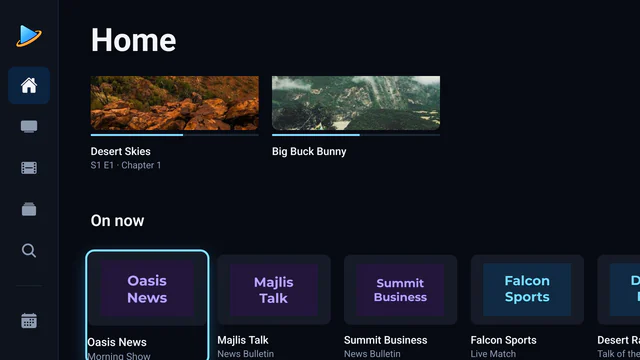
Channels, films and series fill in as they load, and from then on Aina opens straight away. Live TV, Movies, Series and Guide are on the rail down the side.
Typing a long address with the remote
Typing letter by letter on the on-screen keyboard is slow. The quick way is your phone: the sign-in screen shows a QR code, you scan it with the phone’s camera, type your details there, and the Mi TV Stick signs in with them. With the remote alone, an M3U link is one field; an Xtream Codes login is three, and you can still skip the http://.
Android TV also takes a Bluetooth keyboard, paired from the device’s settings, and a box with a USB port takes a USB one. Once you have signed in, your details stay on the device, so you type them once.
Made for the remote
- A rail down the side of every screen, and type you can read from the sofa.
- Every control within reach of the arrows, OK and Back: no mouse.
- Change channel and seek with the arrows without leaving the picture.
- Continue watching remembers where you are in each series, the next episode starts by itself, and what you left part-way appears on the television’s home screen too.
- A profile for each person at home, each with their own favourites and Continue watching.
- Parental controls for the family television: hide the categories you choose behind a PIN.
Big lines on a small stick
An HDMI stick has little memory, and a big IPTV line tests it. Aina reads a playlist a piece at a time and keeps the TV guide on disk rather than in memory, so a stick keeps up with a line of hundreds of thousands of entries and a guide of hundreds of megabytes. It plays every stream with libVLC, so the MKV films and TS channels a stick’s own player turns down play too.
If IPTV buffers on the Mi TV Stick
- Move to 5 GHz Wi-Fi, closer to the router. A stick behind the television often has a weak signal, and for most people this is the change that helps most.
- Restart the router and the stick. It fixes more than you would think.
- Only in the evening? When everyone watches at once, freezes usually come from the provider’s servers, and no player can make a server faster.
More on that: how to fix IPTV buffering.
Questions and answers
Yes. The Mi TV Stick runs Android TV with Google Play: install Aina from Google Play, then add your Xtream Codes, M3U or MAC portal subscription.
For Aina it makes no difference: the same app, with the same features, runs on both. The stick plugs straight into the HDMI port; the box sits beside the television, with a USB port for a keyboard. Either way, being close to the router and on 5 GHz Wi-Fi is what helps most against buffering.
No. Aina is on Google Play, which every Mi TV Stick and Mi Box has, and it updates from there by itself.
No. Everything in Aina works with the remote’s arrows, OK and Back. A keyboard, or your phone, only makes typing a long address quicker.