
Widgets and Siri
Your channels, a glance or a word away
On iPhone and iPad, Aina reaches past its own icon: widgets on the home screen, Siri and Shortcuts, quick actions on the icon, and downloads on the Lock Screen. On Apple TV, Siri opens what you ask for.
Updated · By the Aina IPTV team
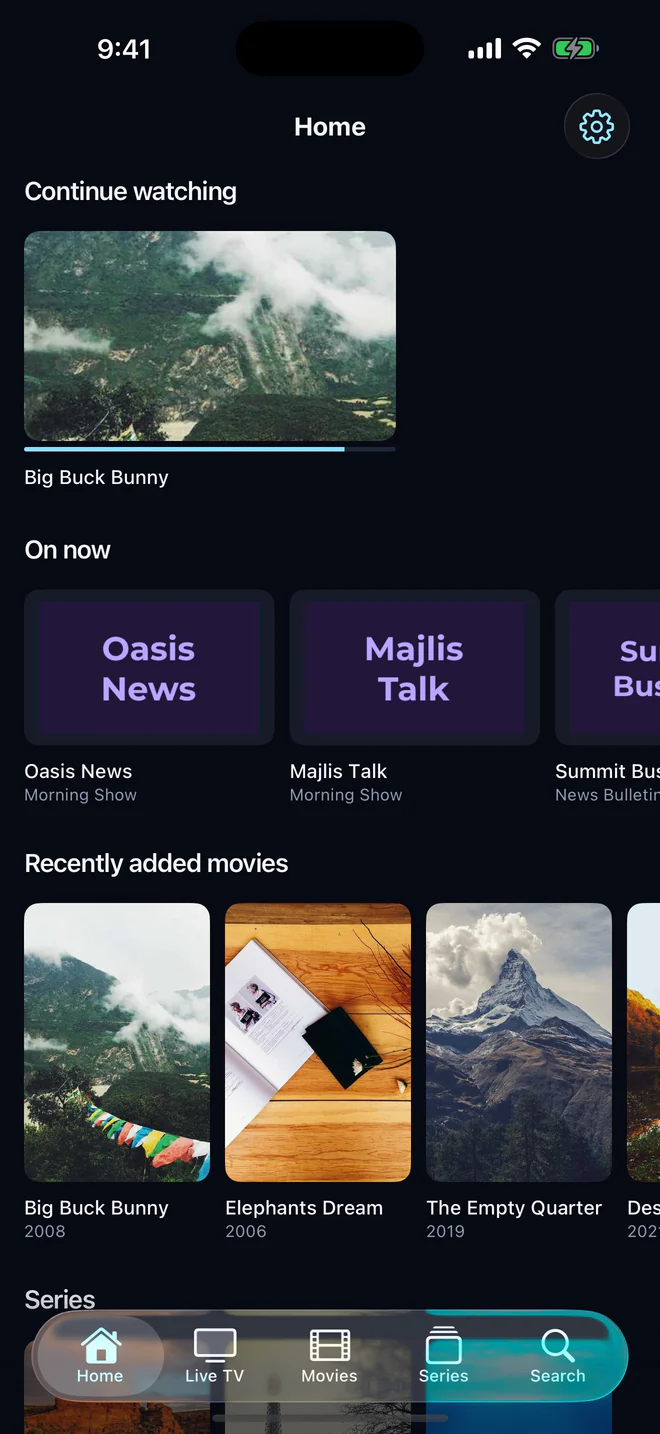
Two widgets, in three sizes
- Continue watching: what you left part-way, with its poster, episode and how far you got. The small widget shows the latest; the medium four and the large six. A tap opens the player where you stopped.
- Your channels: your favourite channels with what is on now and until when, its bar moving on as programmes end, even with the app closed. The small widget shows one channel; the medium four; the large eight.
- They speak the app’s language and follow light and dark. Before you sign in, or with nothing to show yet, each says what it will hold and opens the screen that fills it.
Add one as any widget: hold the home screen, press Edit, then Add Widget, and choose Aina IPTV.
Siri, Spotlight and Shortcuts
Ask Siri, or type into Spotlight. The phrases come in every language the app speaks that Siri speaks too; where Siri does not speak yours, say them in the language Siri is set to:
- “Play (channel name) in Aina IPTV”, for your favourite channels and the ones you watched last.
- “Open (film or series) in Aina IPTV”, for the films and series you are watching, your favourites and what you watched last, by the names you would say, without the tags providers add.
- “Search in Aina IPTV”, and Siri asks what you would like to watch: a name that can only be one title opens its page, anything else its search results.
- “Continue watching”, “Open live TV”, “Open the guide” and “Open sports” in Aina IPTV.
The same actions are in the Shortcuts app, to put on the Action button or in an automation, such as the news channel at seven every evening.
Quick actions on the icon
Hold Aina’s icon for Continue with your latest title, Live TV, Search and Sports, straight from the home screen.
Downloads on the Lock Screen
While films or episodes download, a Live Activity on the Lock Screen and in the Dynamic Island shows the one under way and how far the queue has got, with a button to pause it. More about downloads.
On Apple TV
Hold the Siri button on the remote and say the same: “Play” a channel, “Open” a film or series, or open Live TV, the guide, Search or Sports in Aina IPTV. Continue watching also sits on the Top Shelf, above Aina’s icon.
Questions and answers
Yes, on iPhone and iPad: Continue watching and Your channels, each in small, medium and large.
Yes. Say “Play”, then the channel’s name, “in Aina IPTV”, for your favourites and the channels you watched last; on Apple TV too, with the Siri Remote.
Not yet. On Android TV and Google TV, Aina puts its own row and Continue watching on the television’s home screen instead.