'/%3e%3c/clipPath%3e%3cclipPath%20id='back'%3e%3crect%20x='-2000'%20y='-2000'%20width='4000'%20height='2004'%20transform='rotate(-30)'/%3e%3c/clipPath%3e%3cmask%20id='under-front'%20maskUnits='userSpaceOnUse'%20x='-490'%20y='-524'%20width='980'%20height='848'%3e%3crect%20x='-490'%20y='-524'%20width='980'%20height='848'%20fill='%23fff'/%3e%3cg%20clip-path='url(%23front)'%3e%3cpath%20transform='rotate(-30)'%20d='M-536%200%20A536%20166%200%201%200%20536%200%20A536%20166%200%201%200%20-536%200%20Z%20M-464%20-28%20A464%2094%200%201%200%20464%20-28%20A464%2094%200%201%200%20-464%20-28%20Z'%20fill-rule='evenodd'%20fill='%23000'%20stroke='%23000'%20stroke-width='64'/%3e%3c/g%3e%3c/mask%3e%3cmask%20id='behind-play'%20maskUnits='userSpaceOnUse'%20x='-490'%20y='-524'%20width='980'%20height='848'%3e%3crect%20x='-490'%20y='-524'%20width='980'%20height='848'%20fill='%23fff'/%3e%3cpath%20d='M-310%20-454.449%20A50%2050%200%200%201%20-235%20-497.75%20L275%20-203.301%20A50%2050%200%200%201%20275%20-116.699%20L-235%20177.75%20A50%2050%200%200%201%20-310%20134.449%20L-310%20-454.449%20Z'%20fill='%23000'%20stroke='%23000'%20stroke-width='64'%20stroke-linejoin='round'/%3e%3c/mask%3e%3c/defs%3e%3cpath%20d='M-310%20-454.449%20A50%2050%200%200%201%20-235%20-497.75%20L275%20-203.301%20A50%2050%200%200%201%20275%20-116.699%20L-235%20177.75%20A50%2050%200%200%201%20-310%20134.449%20L-310%20-454.449%20Z'%20fill='url(%23play)'%20mask='url(%23under-front)'/%3e%3cg%20mask='url(%23behind-play)'%3e%3cg%20clip-path='url(%23back)'%3e%3cpath%20transform='rotate(-30)'%20d='M-536%200%20A536%20166%200%201%200%20536%200%20A536%20166%200%201%200%20-536%200%20Z%20M-464%20-28%20A464%2094%200%201%200%20464%20-28%20A464%2094%200%201%200%20-464%20-28%20Z'%20fill-rule='evenodd'%20fill='url(%23orbit)'/%3e%3c/g%3e%3c/g%3e%3cg%20clip-path='url(%23front)'%3e%3cpath%20transform='rotate(-30)'%20d='M-536%200%20A536%20166%200%201%200%20536%200%20A536%20166%200%201%200%20-536%200%20Z%20M-464%20-28%20A464%2094%200%201%200%20464%20-28%20A464%2094%200%201%200%20-464%20-28%20Z'%20fill-rule='evenodd'%20fill='url(%23orbit)'/%3e%3c/g%3e%3c/svg%3e)
Guide
How to add an M3U playlist
An M3U playlist is one link that holds your whole line. Here is how to add it to Aina on any device, with its TV guide, and what each error means if it does not load.
Updated · By the Aina IPTV team
Before you start
You need the playlist URL from your IPTV provider. It is usually in the email or the page you got when you subscribed, and often looks like this:
http://example.com:8080/get.php?username=YOUR_NAME&password=YOUR_PASSWORD&type=m3u_plus&output=ts
If your provider offers a choice, take the m3u_plus link: it carries logos and groups as well as the channels. A guide link, ending in .xml or .xml.gz, is useful too, though many playlists name their own.
Add the playlist
- 1
Open Aina
The first time, it opens on Add your subscription. Already have one? Go to Settings, then Subscriptions, then Add a subscription.
- 2
Choose M3U playlist
It is the tab beside Xtream Codes.
- 3
Paste the playlist URL
Copy the link from your provider and paste it into Playlist URL. You can leave out
http://: Aina adds it. On a television, type it with the remote, or with your phone’s keyboard where your TV offers one. - 4
Add the guide, if you have one
Paste the XMLTV link into Guide URL. Leave it empty if the playlist names its own guide: Aina finds that by itself.
- 5
Name it and connect
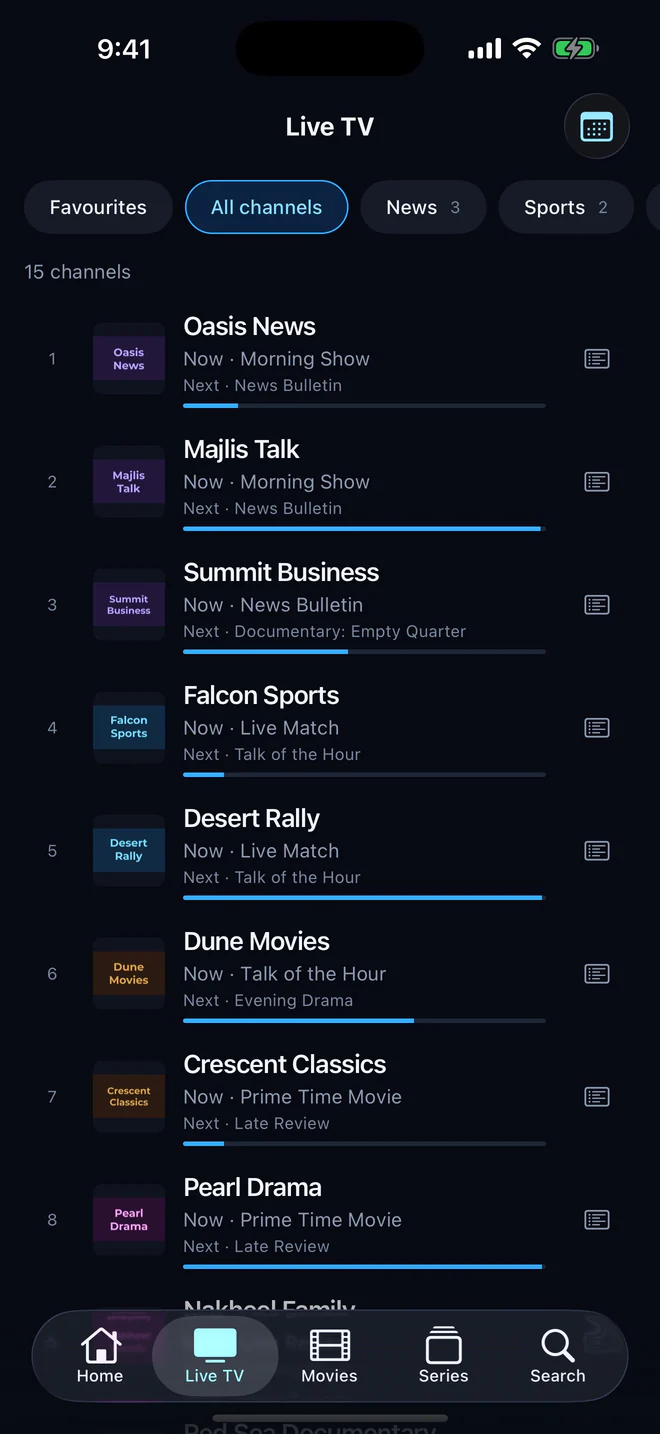
Give it a name you will recognise, such as Home or Sports, and tap Connect. Your channels appear as they load, and Aina sorts films and series out of the list on its own.
If it does not load
- “Could not reach the server.” Open the link in a browser on the same network. If nothing comes back, the provider’s server is down or the address is wrong. Check that it starts with the right
http://orhttps://, has its port, and was copied whole. - “That link did not return an M3U playlist.” The link leads to a web page, often a login or a payment page, rather than the list itself. Ask your provider for the direct M3U link.
- It loads, but with nothing in it. The subscription may have expired, or the provider may have sent a link for a different line.
- It asks to reach your local network. The playlist is on a server in your home, which iPhone and iPad only allow once you agree. Allow it when asked, or turn Aina on in Settings, Privacy & Security, Local Network.
- It loads, but there is no guide. The playlist names no guide, or its channel ids do not match the guide’s. See How to add a TV guide.
- It is very big and slow. Leave it be: Aina keeps waiting as long as data is still arriving, and shows your library as it goes.
M3U or Xtream Codes?
If your provider also gave you a server URL, a username and a password, an Xtream Codes login usually works better: films and series come with their details, and the guide comes by itself. M3U or Xtream Codes? compares the two, and How to sign in with Xtream Codes shows how to read a login out of an M3U link like the one above.
Questions and answers
Not yet. Aina opens playlists by their web address. Ask your provider for the link, or put the file somewhere a URL can reach it.
A version of the playlist that many provider panels offer, carrying each channel’s logo and group as well as its address. Use it when you can.
Yes, as many as you like, alongside Xtream Codes logins, and switch between them in a tap.
Yes. Aina needs no account, so nothing is kept in a cloud: each device keeps its own subscriptions.