
Guide
How to watch IPTV on iPhone and iPad
Your provider sent you a login or a link, and you want it on your iPhone or iPad. Here is how to set it up with Aina in a few minutes, what to tap first, and how to get the picture onto the television when you want it bigger.
Updated · By the Aina IPTV team
What you need
- An iPhone or iPad with iOS or iPadOS 16.4 or later. To check: Settings, General, About.
- What your IPTV provider sent you: an Xtream Codes login (server, username and password), an M3U playlist link, or a MAC portal and the MAC address it was registered for.
- Wi-Fi or mobile data. Live channels use a lot of data, so Wi-Fi is kinder to your plan.
Set it up, step by step
- 1
Get Aina from the App Store
Open the App Store, search for Aina IPTV and tap Get, or open Aina on the App Store on the iPhone or iPad.
- 2
Choose what your provider sent
Aina opens on Add your subscription. At the top, choose Xtream Codes, M3U playlist or MAC portal.
- 3
Fill it in
For Xtream Codes: the Server, your Username and Password. For M3U: the Playlist link, and a guide link if your provider gave one. For a MAC portal: the portal and the MAC address. A Name is optional, and helps if you have more than one subscription.
- 4
Connect
Tap Connect. Channels, films and series fill in as they load, and a big line shows how far it has got. From then on Aina opens straight to your library.
- 5
Start the free week
The first time you play something, Aina offers 7 free days with everything, started on the App Store’s own sheet: nothing is charged, and nothing renews by itself when the week is up.
Pasting what your provider sent
Copy and paste rather than type. If your provider sent one long link with get.php?username=…&password=… in it, paste the whole of it into Server: Aina takes the server, username and password out of it and fills in all three. You can leave out http://, and Aina mends the usual slips by itself: an address typed with Arabic digits, htpp:// for http://, a port with a space before it. If a line still will not connect, Aina says which address it tried.
Finding your way
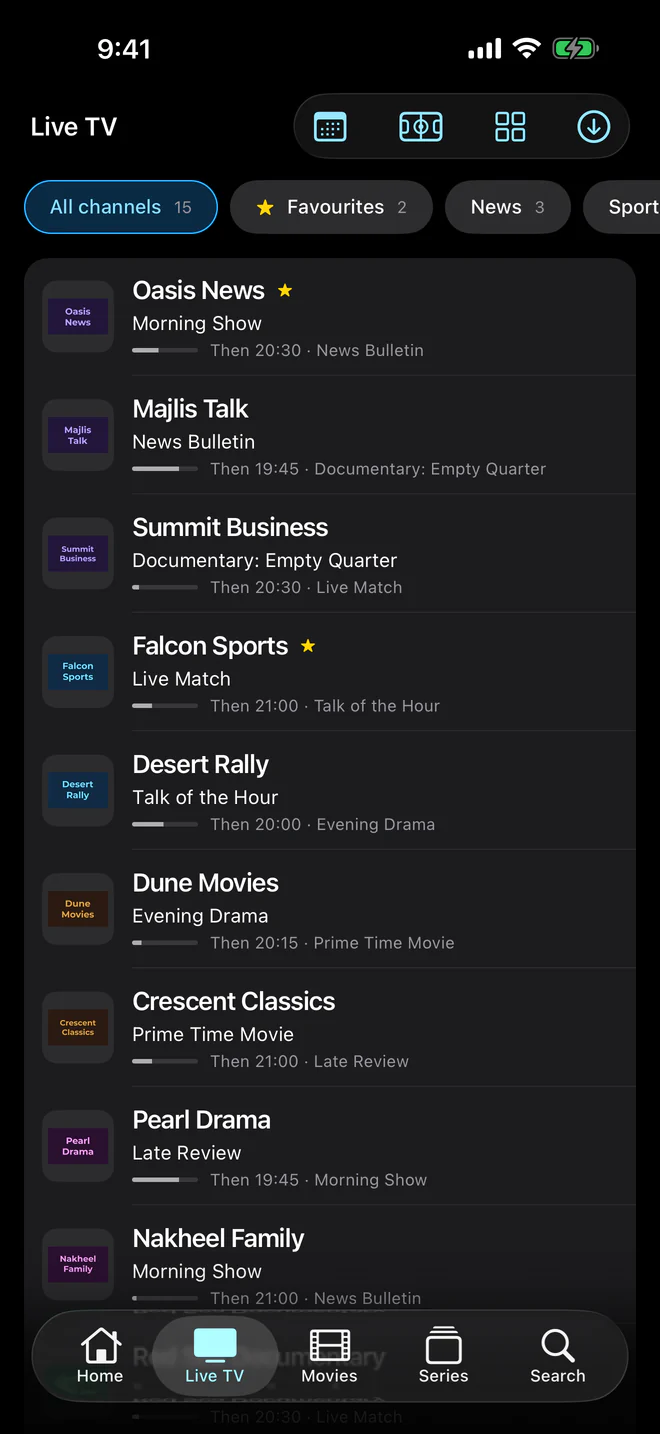
- The tabs along the bottom: Home, Live TV, Movies, Series and Search. The Guide opens from the top of Live TV, and Settings from the top of Home.
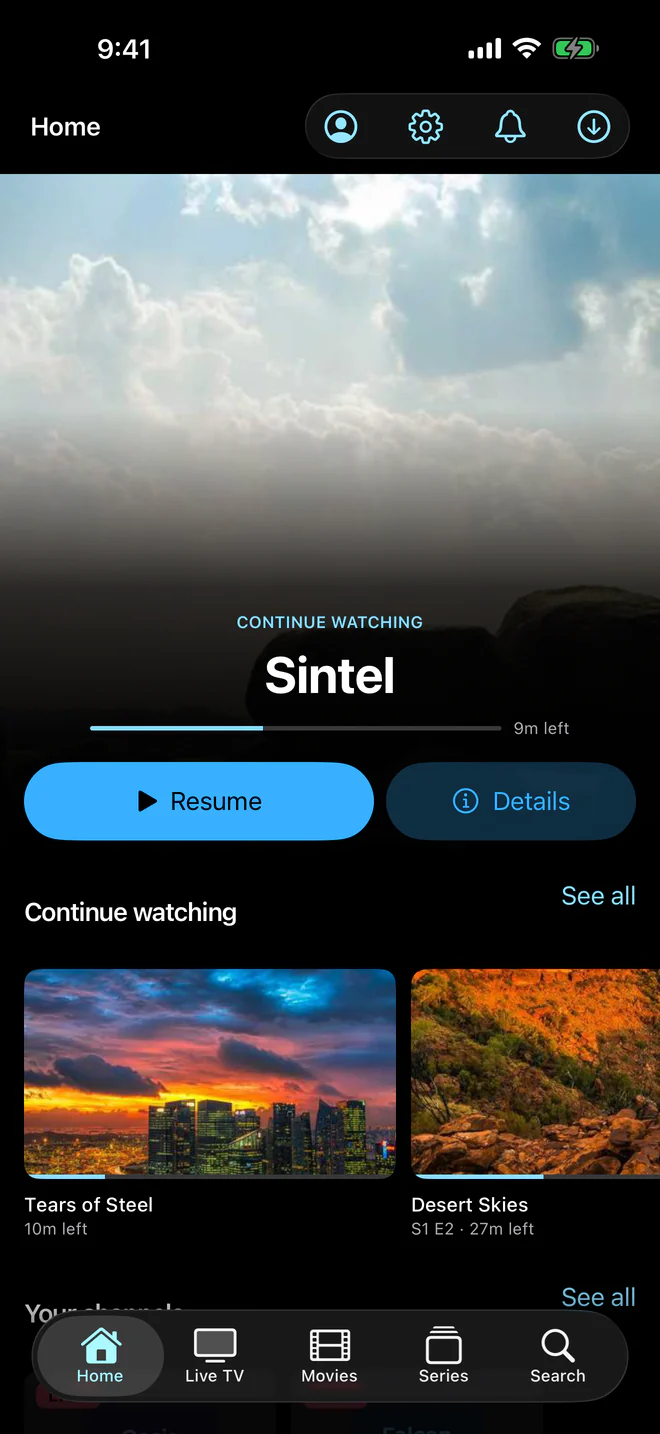
- Hold a poster or a channel for a menu of what you can do with it, with a preview: add a channel to your favourites there, and it shows on Home with what is on now.
- Give each person at home a profile, and use parental controls to hide categories behind a PIN.
The player, in your hand
- Swipe up and down on the left for brightness and on the right for volume; double-tap either side to skip back or forward.
- Picture in Picture: go home while something plays and it carries on in a small window you can move and resize.
- Sound in the background, with the screen locked or another app open: the switch is in Settings, off until you turn it on.
- Audio tracks and subtitles, in the size and colour you like, playback speed and a sleep timer, in the player’s options.
- Pause a live channel that comes as MPEG-TS and carry on from where you paused, with a button back to live.
Watching on the television
- AirPlay to an Apple TV or a television that takes AirPlay: it sends the picture of HLS and MP4 streams, which includes an Xtream Codes line’s live channels. TS channels from a playlist and films in MKV or AVI send only their sound that way.
- Google Cast to a Chromecast or a television with Chromecast built in, from the Cast button in the player.
- For those, or simply for the remote and the guide on the big screen, Aina runs on the television itself: on Apple TV and on Android TV and Google TV.
For the flight: downloads
Download a film, an episode or a whole season, where your provider allows it, and watch without a connection. A download carries on while you use other apps, shows on the Lock Screen and in the Dynamic Island, and stays out of iCloud backups. More about downloads.
On your home screen
Add Aina’s widgets for Continue watching and for your channels with what is on now, and ask Siri to play a channel or open a film. Widgets and Siri.
If it buffers
- Try Wi-Fi on 5 GHz, near the router, or the other way round: switch to mobile data to see whether your Wi-Fi is the problem.
- Only in the evening? When everyone watches at once, freezes usually come from the provider’s servers, which no player can speed up.
- More in how to fix IPTV buffering.
Questions and answers
Yes, it is one app, laid out for each: on an iPad, Live TV shows the channel you choose beside the list, with what is on now and next, and a season’s episodes lie side by side.
The first 7 days are free, with everything. After that, watching needs the full version: $3.99 a month, $19.99 a year or $49.99 once (US prices). One purchase covers every iPhone, iPad and Apple TV on the same Apple Account.
In most countries, including the United States, the United Kingdom, Canada, Switzerland, Turkey, Brazil and the Gulf, yes. It is not in the App Store in the European Union or in mainland China yet.
AirPlay sends the picture of HLS and MP4 streams only. A TS channel or an MKV film sends its sound alone: use Google Cast, Screen Mirroring from Control Center, or Aina on the television itself.
Yes, in Picture in Picture. For sound alone with the screen off, turn on the switch in Settings first.