
Guide
How to watch IPTV on an Android phone or tablet
Your provider sent you a login or a link, and you want it on your phone. Here is how to set it up with Aina in a few minutes, what to tap first, and how to send the picture to the television when you want it bigger.
Updated · By the Aina IPTV team
What you need
- An Android phone or tablet with Android 7.0 or later and Google Play. To check: Settings, About phone, Android version.
- What your IPTV provider sent you: an Xtream Codes login (server, username and password), an M3U playlist link, or a MAC portal and the MAC address it was registered for.
- Wi-Fi or mobile data. Live channels use a lot of data, so Wi-Fi is kinder to your plan.
Set it up, step by step
- 1
Get Aina from Google Play
Open Google Play, search for Aina IPTV and tap Install, or open Aina on Google Play on the phone.
- 2
Choose what your provider sent
Aina opens on Add your subscription. At the top, choose Xtream Codes, M3U playlist or MAC portal.
- 3
Fill it in
For Xtream Codes: the Server, your Username and Password. For M3U: the Playlist link, and a guide link if your provider gave one. For a MAC portal: the portal and the MAC address. A Name is optional, and helps if you have more than one subscription.
- 4
Connect
Tap Connect. Channels, films and series fill in as they load, and a big line shows how far it has got. From then on Aina opens straight to your library.
- 5
Start the free week
The first time you play something, Aina offers 7 free days with everything. One tap starts them: there is no card to give and nothing renews by itself.
No subscription yet?
On Android you can look around first: Try it without a subscription, on the sign-in screen, opens Aina with one free public cooking channel, so you can see the player and the layout before you have a line of your own.
Pasting what your provider sent
Copy and paste rather than type. If your provider sent one long link with get.php?username=…&password=… in it, paste the whole of it into Server: Aina takes the server, username and password out of it and fills in all three. You can leave out http://, and Aina mends the usual slips by itself: an address typed with Arabic digits, htpp:// for http://, a port with a space before it. If a line still will not connect, Aina says which address it tried.
Finding your way
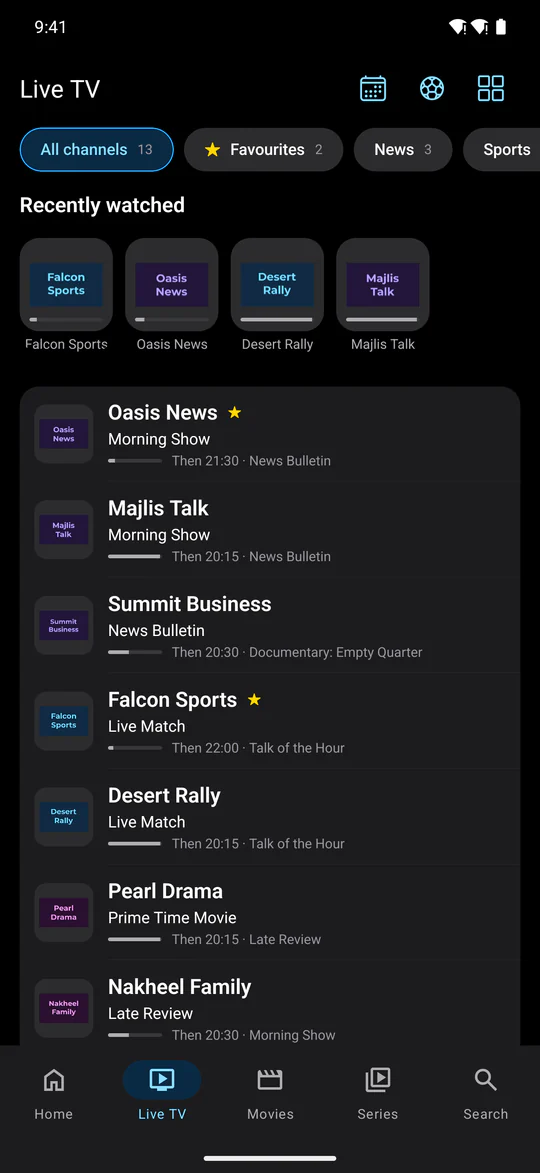
- The tabs along the bottom: Home, Live TV, Movies, Series and Search. The Guide opens from the top of Live TV, and Settings from the top of Home.
- Press and hold a channel for what you can do with it: add it to your favourites, and it shows on Home with what is on now.
- Give each person at home a profile, and use parental controls to hide categories behind a PIN.
- On a tablet, Live TV shows the channel you choose beside the list, with what is on now and next, and a season’s episodes lie side by side.
The player, in your hand
- Swipe up and down on the left for brightness and on the right for the phone’s own volume; double-tap either side to skip back or forward.
- Picture in Picture: go home while something plays and it carries on in a small window over your other apps.
- Sound in the background, with the screen off or another app open: the switch is in Settings, off until you turn it on.
- Audio tracks and subtitles, in the size and colour you like, playback speed and a sleep timer, in the player’s options.
- Pause a live channel that comes as MPEG-TS and carry on from where you paused, with a button back to live.
Watching on the television
- Google Cast to a Chromecast or a television with Chromecast built in, from the Cast button in the player. What casts, and how.
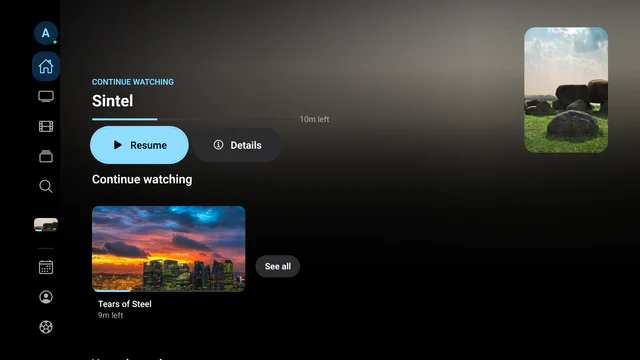
- Or install Aina on the television itself: Android TV and Google TV, step by step. One purchase covers your phone, tablet and television on the same Google account.
For the journey: downloads
Download a film, an episode or a whole season, where your provider allows it, and watch without a connection. Pause and resume a download, and save a finished one to a folder of your choosing. More about downloads.
If it buffers
- Try Wi-Fi on 5 GHz, near the router, or the other way round: switch to mobile data to see whether your Wi-Fi is the problem.
- Only in the evening? When everyone watches at once, freezes usually come from the provider’s servers, which no player can speed up.
- More in how to fix IPTV buffering.
Questions and answers
Yes, on any Android phone or tablet with Android 7.0 or later and Google Play. A phone without Google Play, as some recent Huawei models are, cannot install it.
The first 7 days are free, with everything, and starting them takes no card. After that, watching needs the full version: $3.99 a month, $19.99 a year or $49.99 once (US prices). Browsing your library and the guide stays free.
Yes, on Android: Try it without a subscription, on the sign-in screen, opens one free public cooking channel.
Yes. A purchase belongs to your Google account, and restores on every phone, tablet and television signed in to it.
Films and episodes you download play without a connection, where your provider allows downloads. Live TV needs a connection.