
Guide
How to install IPTV on Android TV and Google TV
If your television has Google Play, or you have a Chromecast with Google TV or a Google TV Streamer, you can be watching your IPTV subscription in about five minutes. Here is the whole of it, from Google Play to the first channel.
Updated · By the Aina IPTV team
Will it work on my television?
Aina runs on anything with Android TV or Google TV, Android 7.0 or later and Google Play. The quickest test: if Google Play is on your television’s home screen, or the home screen says Google TV, it will work.
| Device | Runs Aina |
|---|---|
| Televisions with Google TV or Android TV built in (many Sony, TCL, Hisense and Philips models, among others) | Yes, from Google Play |
| Chromecast with Google TV, Google TV Streamer | Yes, from Google Play |
| NVIDIA Shield TV | Yes, from Google Play |
| Xiaomi Mi TV Stick, TV Stick 4K, Mi Box S, TV Box S | Yes: its own guide |
| Amazon Fire TV Stick (Fire OS, with no Google Play) | No: the ways that work |
| Samsung (Tizen) and LG (webOS) smart TVs | No: the ways that work |
What you need
- What your IPTV provider sent you: an Xtream Codes login (server, username and password), an M3U playlist link, or a MAC portal and the MAC address it was registered for.
- The Google account signed in on the television, for Google Play.
- Your phone, if you would rather not type with the remote.
Install it, step by step
- 1
Get Aina from Google Play
On the television, open Google Play (on Google TV, the Apps tab or the search) and look for Aina IPTV. Or skip the remote altogether: open Aina on Google Play on your phone or computer, signed in with the same Google account, and choose your television as the device to install on.
- 2
Open Aina
It opens on Sign in from your phone: a QR code and three short steps, with the form one press away for those who would rather use the remote.
- 3
Sign in from your phone
Open your phone’s camera, point it at the code, and type your subscription’s details on the page that opens. The television signs in by itself. Every kind works this way: Xtream Codes, M3U playlist and MAC portal.
- 4
Or type it on the television
Choose Xtream Codes and fill in the server, username and password; or M3U playlist and its link; or MAC portal, the portal and the MAC address. You can leave out
http://, and a provider’s wholeget.php?username=…&password=…link pasted into the server field fills in all three fields. Then Connect. - 5
Watch
Channels, films and series fill in as they load, and a very big line shows how far it has got. From then on Aina opens straight to your library. The first 7 days are free, with everything.
Typing a long address without the remote
The QR code is the quickest way, and it is why it is the first thing Aina shows. If you prefer the form: on Google TV, the Google TV app on your phone has a keyboard that types straight into the television. A Bluetooth keyboard pairs from the television’s settings, and a box with a USB port, such as the Shield TV Pro, takes a USB one. You type it once: after that the subscription stays on the television.
Finding your way with the remote
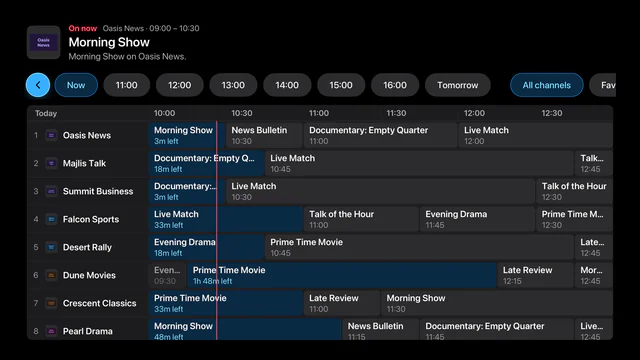
- A rail down the side of every screen: Home, Live TV, Movies, Series, Search, the Guide, Sports, your profile and Settings. Everything is in reach of the arrows, OK and Back, with no mouse.
- In the player, Up and Down change channel on a live one, and Left and Right seek in a film or an episode; a remote’s number keys go to a channel by its number, and the red key, or OK held down, goes back to the channel before.
- The info key, or a change of channel, brings up what is on now and what is next.
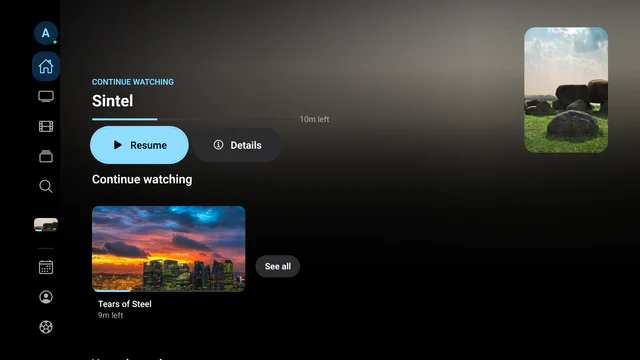
- What you leave part-way shows in Continue watching on the television’s home screen, and in Aina’s own row there too.
- A profile for each person at home, and parental controls that hide the categories you choose behind a PIN.
Make it smooth
- A cable beats Wi-Fi. A television or a Shield with an Ethernet port is steadiest wired; on Wi-Fi, use 5 GHz and keep the router near.
- Big lines are fine. Aina reads a playlist a piece at a time and keeps the guide on disk, so even a small stick copes with hundreds of thousands of entries.
- Streams other players refuse play here. Aina plays with libVLC, so MKV films and TS channels a television’s own player turns down play too.
- Buffering every evening usually comes from the provider’s servers, which no player can speed up. More in how to fix IPTV buffering.
Why Aina on these televisions in the first place, and everything it does there: the Android TV and Google TV page.
Questions and answers
If the television runs Google TV or Android TV with Google Play, yes: install Aina from Google Play. A television with its own system, such as Samsung’s Tizen or LG’s webOS, does not run it.
Yes. Chromecast with Google TV and Google TV Streamer run Google TV, and Aina installs on them from Google Play like any other app.
No. Aina is on Google Play, and it updates from there by itself.
The first 7 days are free, with everything. After that, watching needs the full version: $3.99 a month, $19.99 a year or $49.99 once (US prices). Your library and the guide stay open either way, and one purchase covers your Android phone, tablet and television on the same Google account.
Scan the QR code Aina shows with your phone and type your details there, or choose Xtream Codes, M3U playlist or MAC portal on the television and type them with the remote.